Most browser add-ons are digital clutter. As of May 2026, Google Chrome Statistics show the Chrome Web Store hosts over 251,488 extensions, yet 90.11% have fewer than 1,000 users. Finding tools that actually respect your data, don't drag down performance, and comply with Google's modern Manifest V3 (MV3) security architecture requires ruthless curation.
The best Chrome extensions prioritize safety, privacy, and performance while solving a specific daily problem. Instead of installing a massive, bloated list, build a lean stack: install one modern MV3-compliant ad blocker (like uBlock Origin Lite), a trusted password manager (Bitwarden), a background privacy shield (Privacy Badger), and one dedicated workflow tool. Keeping your installation list small limits your attack surface, prevents browser memory lag, and protects your data.
Start with just the essentials. Below is our rigorously tested list of tools that actually earn their keep.
TL;DR: If You Only Install 7 Tools
| Extension | Best for | Why it stays installed | Biggest caveat | Price |
|---|---|---|---|---|
| uBlock Origin Lite | MV3-compliant blocking | Kills ads with near-zero CPU drag. | Lacks dynamic MV2 scriptlet injection. | Free |
| Bitwarden | Passwords | Open-source, zero-knowledge encryption. | UI feels dense for beginners. | Free / Paid |
| Privacy Badger | Tracker blocking | Zero-configuration background privacy. | Breaks occasional site elements. | Free |
| Dark Reader | Eye-care / Focus | Flawless on-the-fly dark mode. | Measurable CPU impact on heavy sites. | Free |
| LanguageTool | Writing / Grammar | Privacy-first multilingual checks. | Requires internet to process text. | Free / Paid |
| OneTab | Tab management | Instantly frees up browser memory. | No cloud sync across devices. | Free |
| Keepa | Price history | Exposes fake Amazon discounts. | Charts look visually cluttered. | Free / Paid |
How to Tell If a Chrome Extension Is Safe
Always match an extension's requested permissions against its core function. If a simple utility demands "read and change all data on all websites," do not install it.
Web Store approval is not a lifetime guarantee. Extensions change hands, suffer account compromises, or push malicious updates. Before running a new Chrome extensions download, run this 4-step safety check:
- Check the Developer & Badges: Look for the Chrome Web Store badges: the Featured badge (Google reviewed it for technical best practices) or the Established Publisher badge (verified identity with a positive track record).
- Match Permissions to Function: A grammar assistant needs to read what you type to work globally. A Pomodoro timer does not.
- Read Privacy Practices: Verify what data the extension collects. Ensure the policy explicitly forbids selling your data.
- Tighten Access Post-Install: Never blindly click "Add to Chrome." After installation, navigate to Manage extensions and change site access to "On click" or "On specific sites" if the tool still functions under those constraints.
What Manifest V3 Changed (And Why Old Blockers Break)
Chrome's mandatory shift to Manifest V3 (MV3) restricts how extensions block network requests. Do not rely on outdated Manifest V2 (MV2) recommendations.
If you are wondering why your old uBlock Origin stopped working on Chrome, it's because of Manifest V3. This architectural shift replaced the webRequest API with declarativeNetRequest, fundamentally limiting dynamic background filtering to improve performance and security.
You must transition to MV3-compatible tools. If you use Chrome, swap to uBlock Origin Lite. If you demand maximum, unrestricted dynamic ad blocking, you will need to switch browser engines entirely.
Best Chrome Extensions for Ad Blocking and Content Filtering
Top extensions for Google Chrome handle web hygiene seamlessly under the new MV3 rules. Layer specialized tools only if you have a niche, heavy use case.
1. uBlock Origin Lite
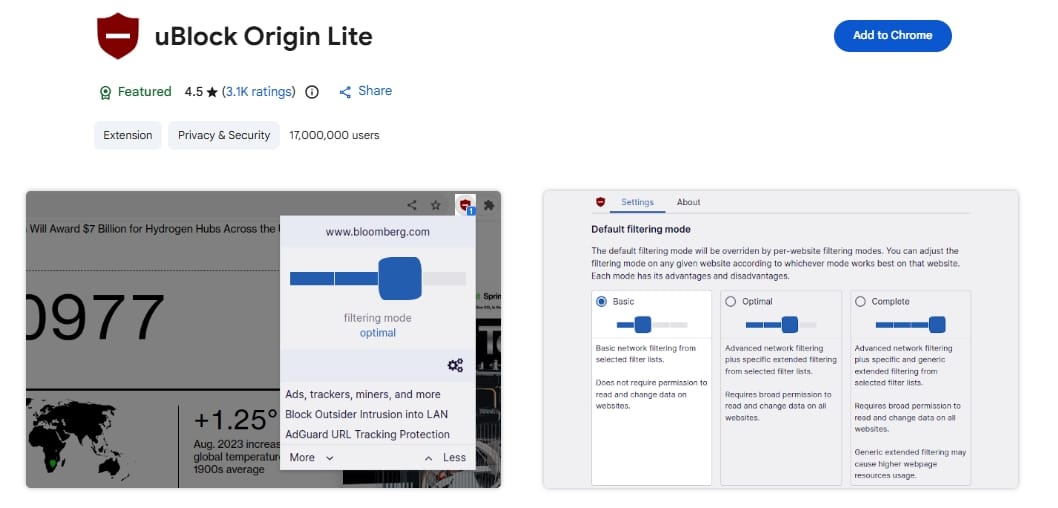
- Best for: Chrome-native, MV3-compliant ad blocking.
- Why it made the list: Successfully blocks most ads and trackers natively under Manifest V3 without requiring a background service worker process. It actively improves browsing speed by reducing page weight.
- Permission reality check: Needs broad site access to filter network requests.
- Key limitation: Cannot dynamically inject scriptlets or bypass advanced anti-blockers like the legacy MV2 version.
2. SponsorBlock
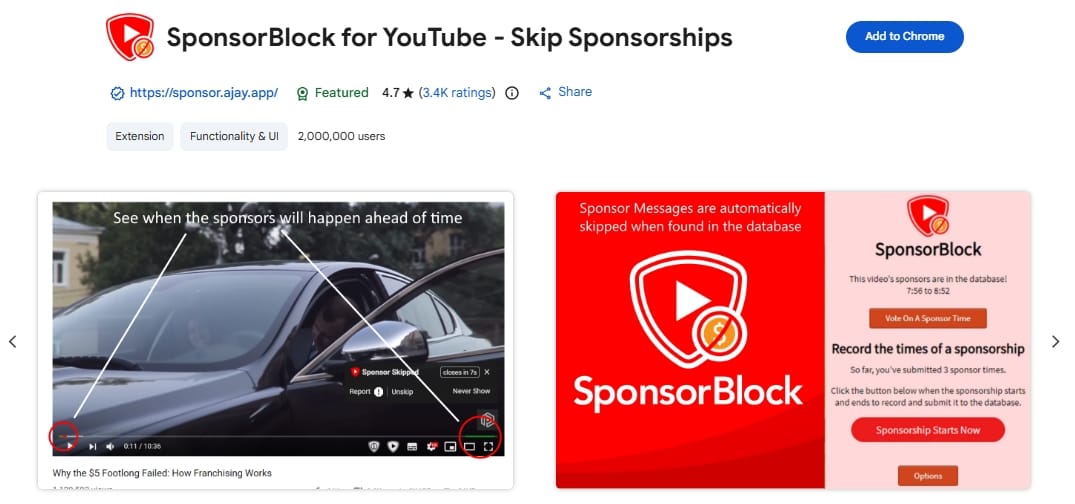
- Best for: Skipping sponsored segments within YouTube videos.
- Why it made the list: Handles a specific problem standard ad blockers cannot touch using crowdsourced timestamps.
- Permission reality check: Requires YouTube host access to read timestamps and skip video sections.
- Key limitation: Relies on community submissions; brand new videos may not have skips logged yet.
Best Chrome Extensions for Password Management and Security
Before adding any password extension, evaluate Google Password Manager. It natively handles saving, autofill, passkeys, and breach checks. However, for desktop users needing cross-browser sync, third-party vaults are the best Chrome extensions for PC.
3. Bitwarden
- Best for: Secure, open-source, cross-platform credential sync.
- Why it made the list: Combines an open-source codebase, rigorous third-party auditing, and zero-knowledge encryption. Bitwarden cannot see your vault contents.
- Permission reality check: Requires clipboard and storage access to safely inject credentials.
- Key limitation: The utilitarian interface feels dense to beginners.
4. 1Password
- Best for: Polished, premium UX and seamless passkey support.
- Why it made the list: Offers visually refined vault management, unparalleled shared-vault capabilities, and a flawless modern security record.
- Permission reality check: Broad access required to function as a global credential injector.
- Key limitation: Paid subscription only; no permanently free tier available.
Best Chrome Extensions for Privacy and Tracker Protection
True privacy extensions minimize background tracking without demanding invasive permissions themselves.
A Note on VPNs: Users often search for the best free VPN extensions Chrome supports. Treat VPN extensions as high-trust security software, not casual add-ons. Standard browser site-access controls do not restrict extensions that alter lower-level network routing. Always vet the company rigorously.
5. Privacy Badger
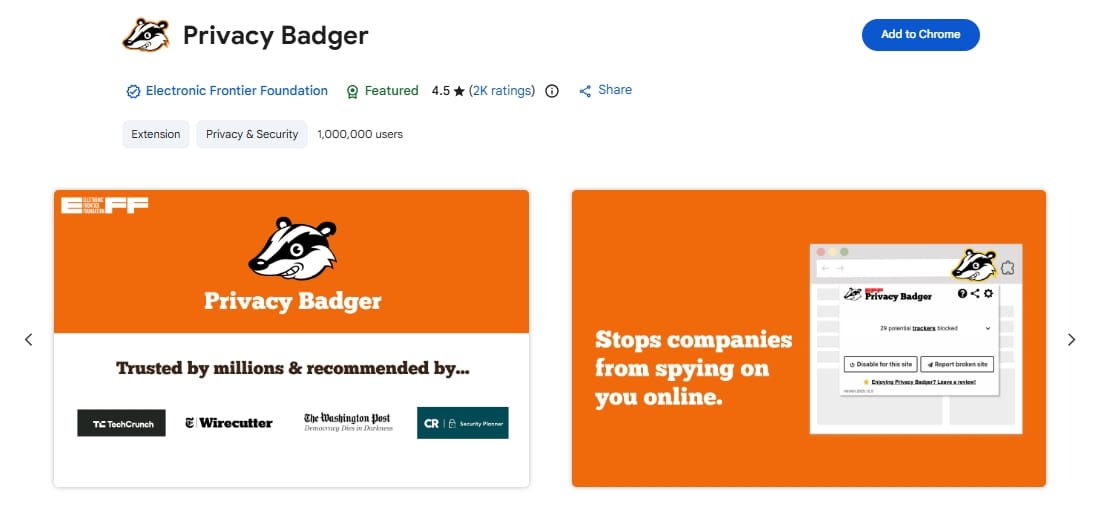
- Best for: Algorithmic, zero-configuration tracker blocking.
- Why it made the list: Backed by the Electronic Frontier Foundation (EFF). Instead of relying on static lists, it learns to block invisible trackers automatically based on their behavior across sites.
- Permission reality check: Needs broad access to monitor third-party network requests. Explicit zero-collection policy.
- Key limitation: Aggressive heuristic learning can occasionally break site layouts or video players.
6. DuckDuckGo Privacy Essentials
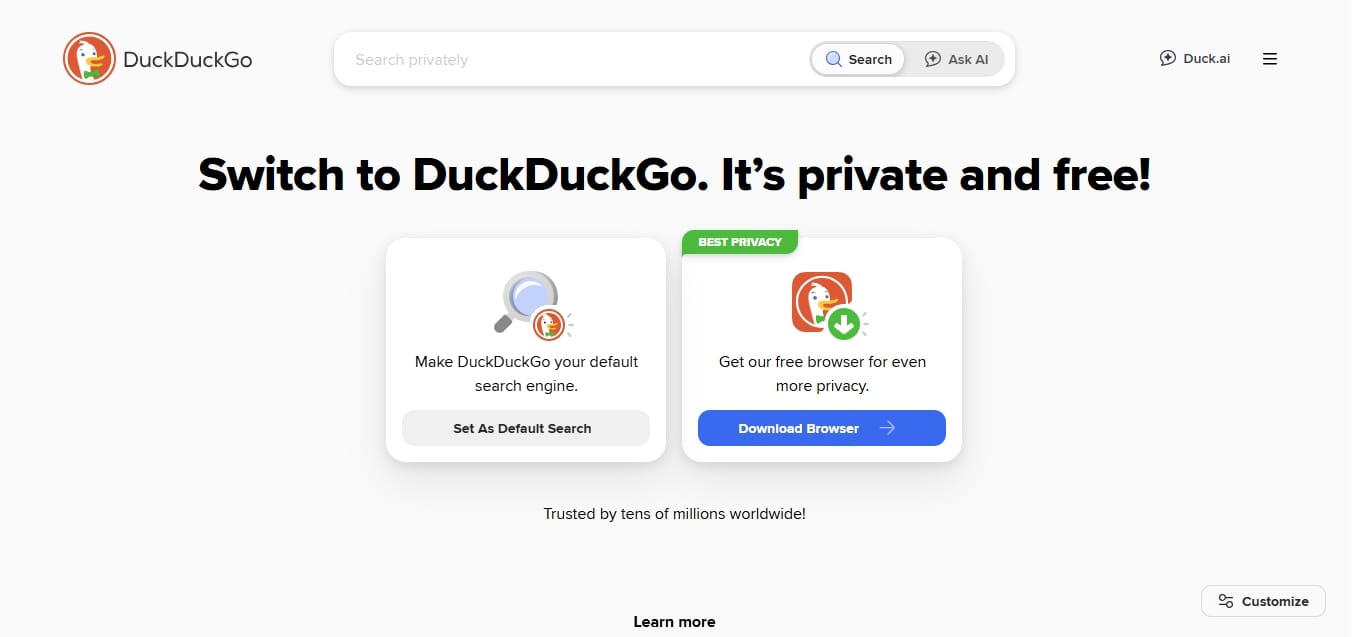
- Best for: A simplified, all-in-one privacy bundle.
- Why it made the list: Good for mainstream users wanting tracker blocking, forced HTTPS, and search privacy in one click. Provides an easy-to-read "Privacy Grade" for websites.
- Permission reality check: Sets your default search engine to DuckDuckGo.
- Key limitation: Directly overlaps with uBlock Origin Lite; do not run both simultaneously.
Best Chrome Extensions for Productivity and Focus
The best Chrome productivity extensions eliminate repetitive friction without slowing down your browser. If a tool does not save you measurable time every week, uninstall it.
7. Todoist
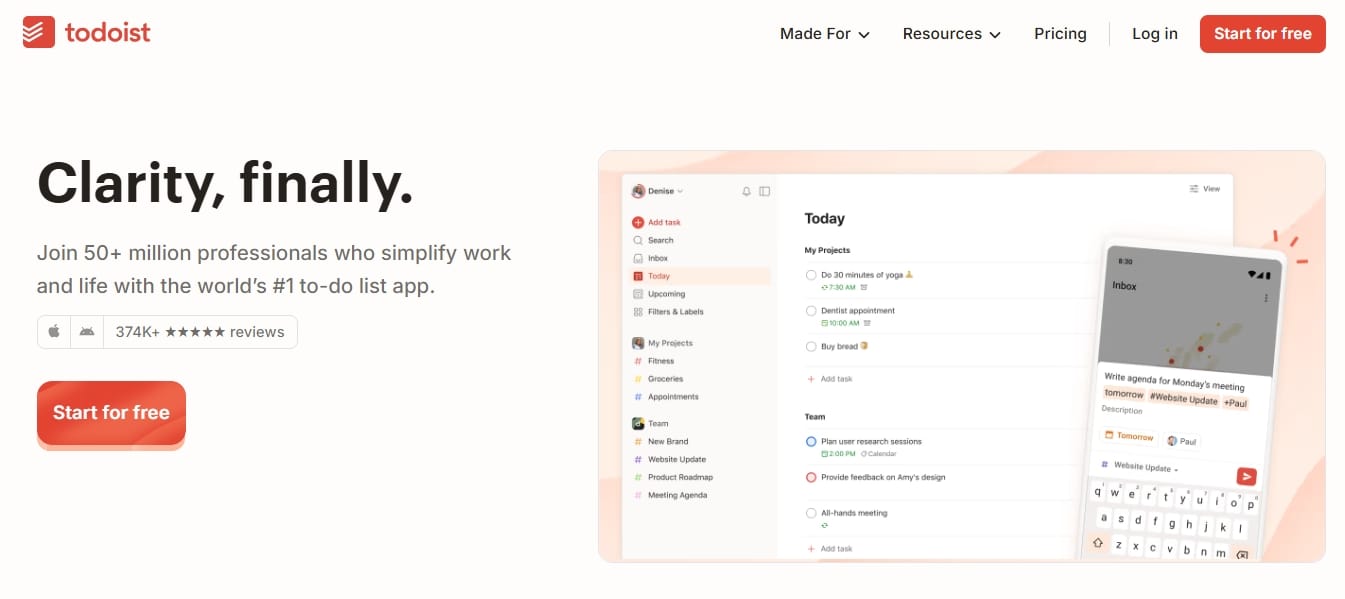
- Best for: Rapid task capture while browsing.
- Why it made the list: Saves URLs as actionable tasks with one click without forcing you to leave the page. Zero background drag.
- Permission reality check: Needs access to the active tab to extract the URL and page title.
- Key limitation: Only useful if you already use Todoist as your primary task manager.
8. StayFocusd
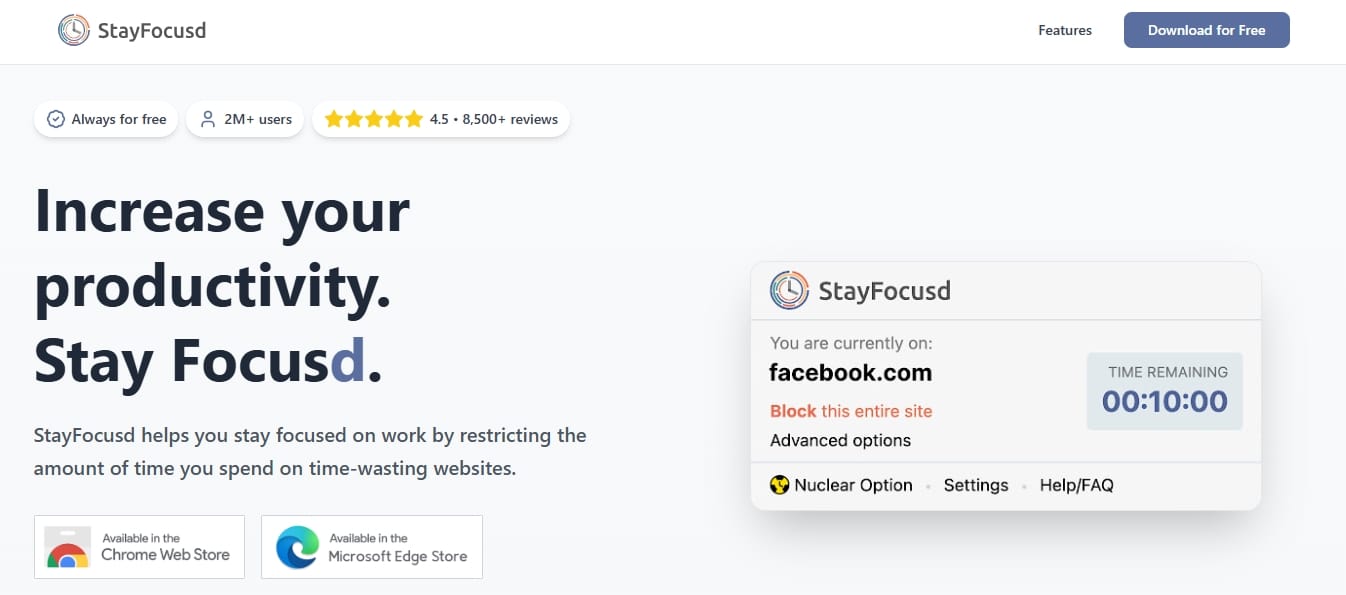
- Best for: Hard-blocking distracting websites.
- Why it made the list: The nuclear option for enforcing focus. Restricts the amount of time you can spend on time-wasting sites, physically locking you out once your limit depletes.
- Permission reality check: Needs broad site access to monitor active domains and inject block screens. Operates entirely locally.
9. Dark Reader
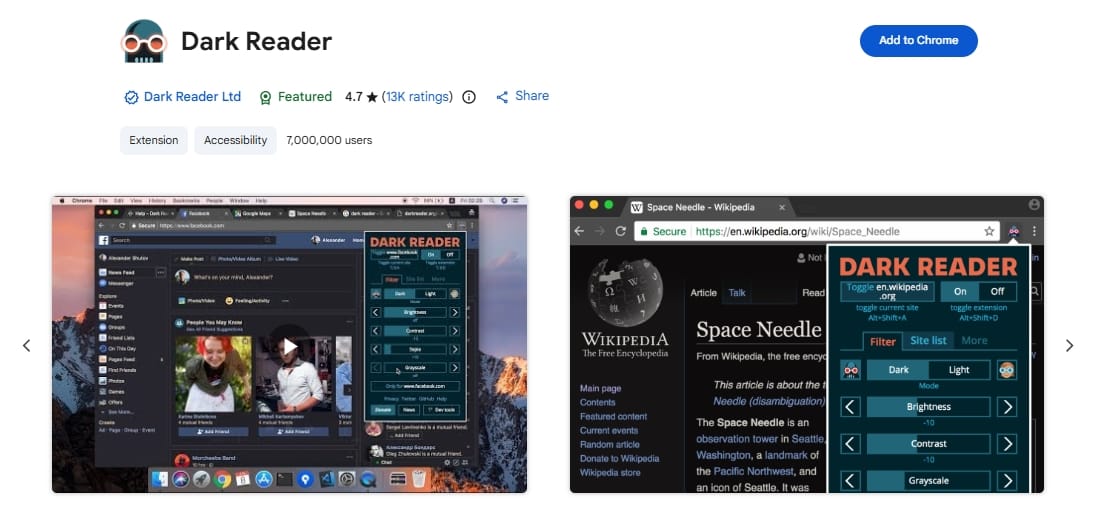
- Best for: Eye-care and global dark mode generation.
- Why it made the list: Generates elegant, high-contrast dark modes on the fly without breaking site readability for domains that lack native dark themes.
- Permission reality check: Requires full site access to inject CSS overrides into every page.
- Key limitation: Measurable processing lag on heavily scripted, complex web pages.
Best Chrome Extensions for Writing and Grammar
Writing assistants require broad text-reading permissions. You only need one. Review site access and privacy practices carefully before letting an extension read every text field you type in.
10. LanguageTool
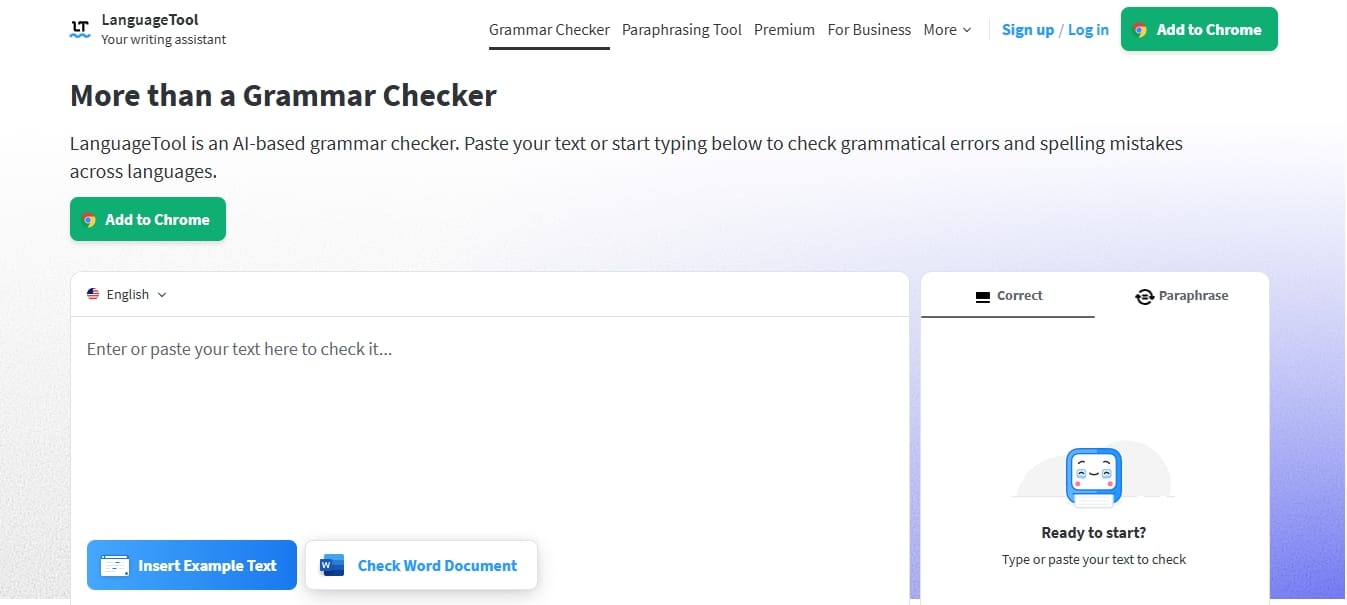
- Best for: Multilingual, privacy-respecting grammar correction.
- Why it made the list: Supports over 30 languages without requiring an account. Checks text securely over HTTPS and explicitly states it does not store your text after processing.
- Permission reality check: Needs broad access to read and replace text in forms.
- Key limitation: Advanced stylistic suggestions locked behind the paid tier.
11. Grammarly
- Best for: Mainstream, highly polished English writing assistance.
- Why it made the list: Unmatched accuracy in catching tone, clarity, and structural issues in real-time.
- Permission reality check: Justified broad access. To correct text globally, it must read what you type.
- Key limitation: Collects substantial text data to improve its AI (a required tradeoff) and pushes aggressive free-tier upsells.
Best Chrome Extensions for Tab Management
If a tab extension does not save you time or RAM weekly, close the tabs natively and skip the install.
12. OneTab
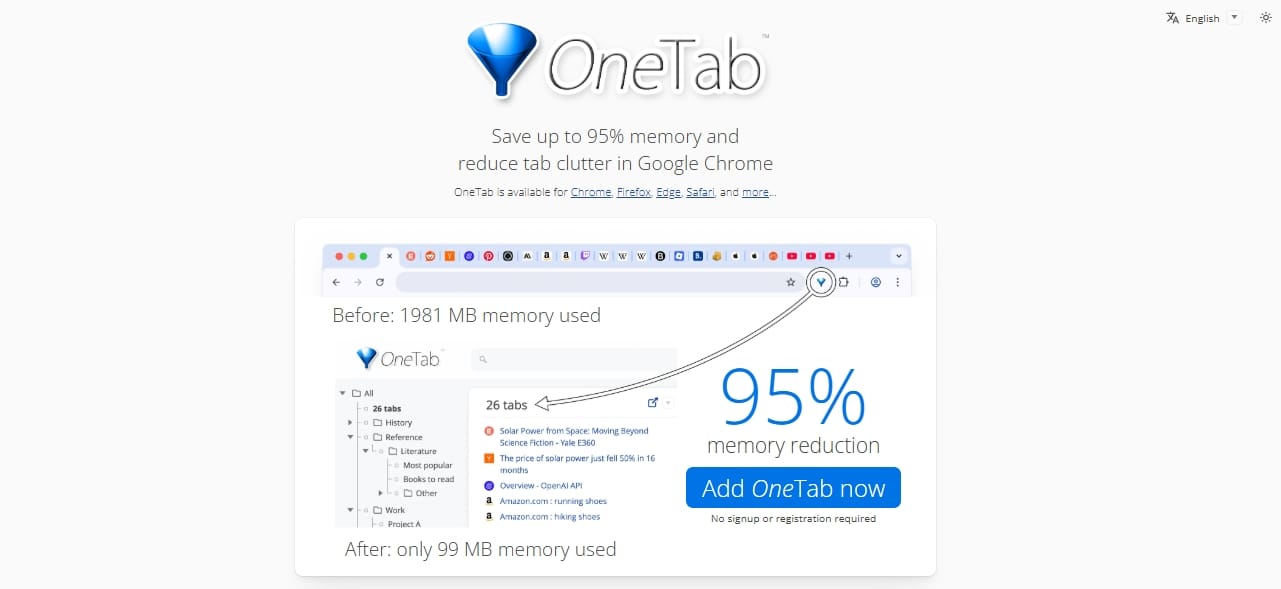
- Best for: Instant browser memory recovery.
- Why it made the list: One click collapses dozens of active tabs into a single, static HTML list, freeing up massive amounts of RAM and instantly organizing chaos.
- Permission reality check: Needs tab-level access to read URLs and close active windows. Local execution only.
- Key limitation: No native cloud sync. If your local storage wipes, saved tabs are lost.
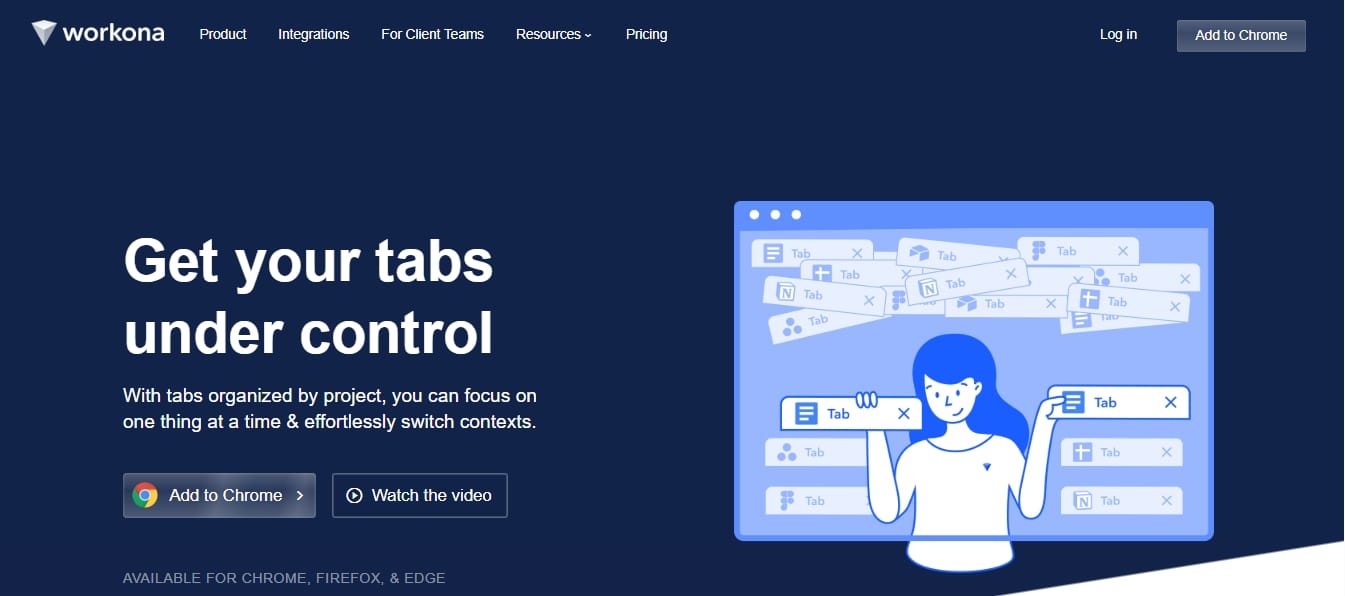
13. Workona
- Best for: Project-based workflow management.
- Why it made the list: A heavy-duty OS for tabs. Groups tabs into dedicated workspaces, allowing multi-project remote workers to swap contexts seamlessly.
- Permission reality check: Broad permissions required to manipulate and save tab states globally.
- Key limitation: Steep learning curve; overkill for users who just need to clear temporary clutter.
Best Chrome Extensions for AI and Workflow Automation
AI extensions pose massive privacy risks. A 2026 Incogni study found that 52% of AI-powered Chrome extensions collect user data. If you only use an AI tool occasionally, bookmark the web app instead of granting permanent browser access.
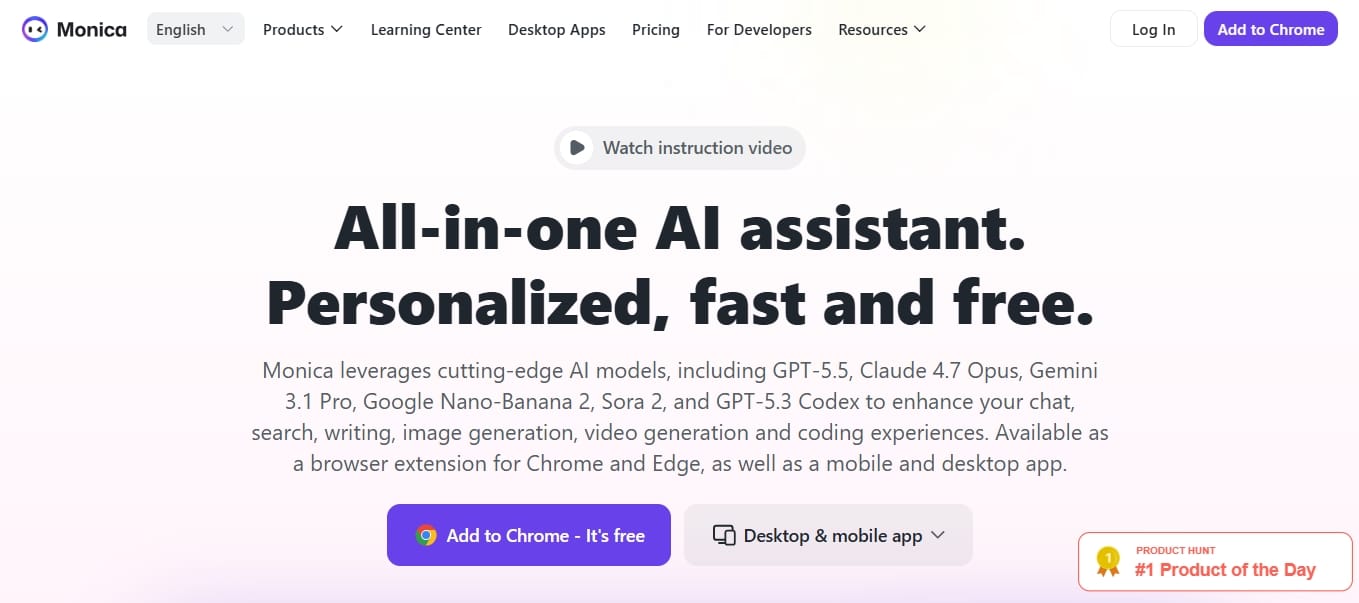
14. Monica
- Best for: Casual AI summarization and side-by-side chat.
- Why it made the list: Unifies GPT-4, Claude, and Gemini into an accessible browser sidebar for instant page summaries.
- Permission reality check: Requires supreme access to "read and change" data on all pages.
- Key limitation: High memory footprint and severe privacy tradeoffs for enterprise workers. Do not use on sensitive work portals.
15. HARPA AI
- Best for: Web scraping and repetitive workflow automation.
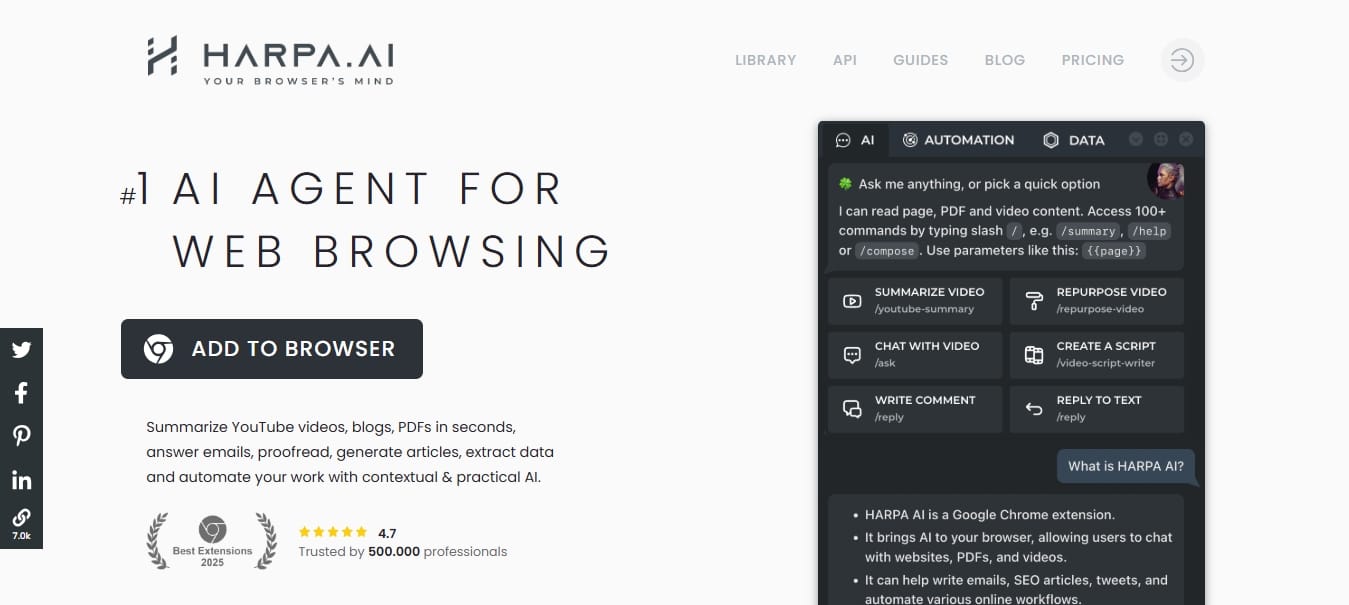
- Why it made the list: Excels at extracting data from pages, tracking price drops, and automating web research using a hybrid local/cloud model.
- Permission reality check: Needs broad permissions to read page structure and automate clicks.
- Key limitation: Complex interface requires building and testing prompts.
Best Chrome Extensions for Shopping and Deals
Prioritize tools that expose hidden pricing data over tools that blindly inject coupons, as the latter often monetize through aggressive background tracking.
16. Keepa
- Best for: Revealing true Amazon price histories.
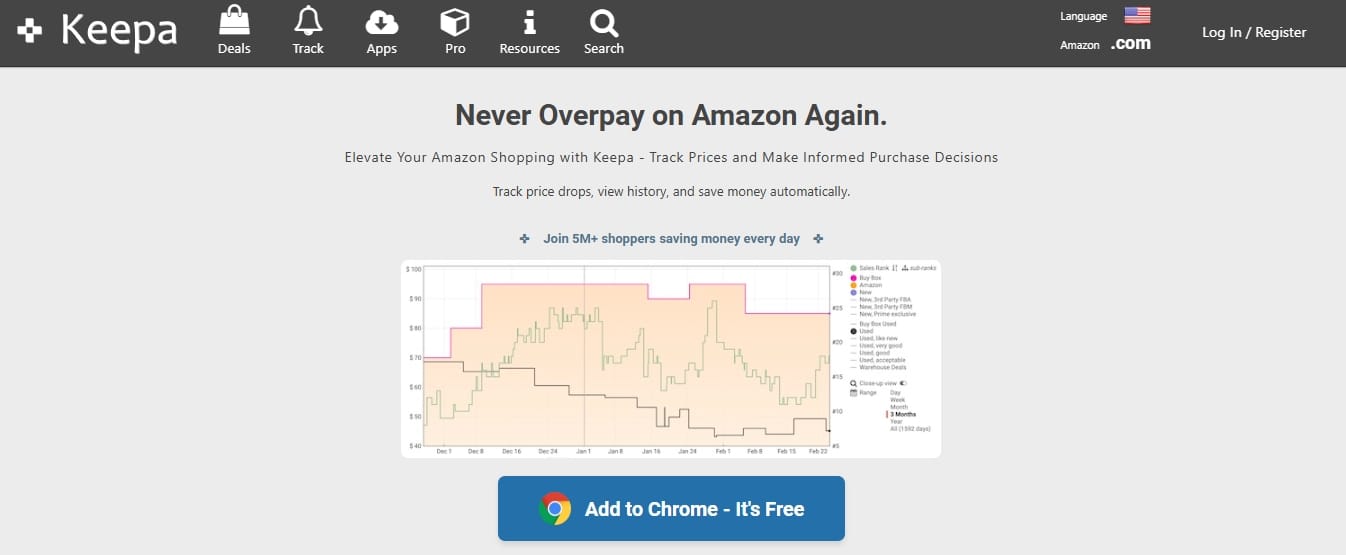
- Why it made the list: Embeds an undeniable historical price chart directly into Amazon product pages, exposing when prices were artificially inflated before a discount.
- Permission reality check: Operates cleanly by only requiring access to Amazon domain properties.
- Key limitation: Visual charts can look overwhelming for casual shoppers.
17. The Camelizer
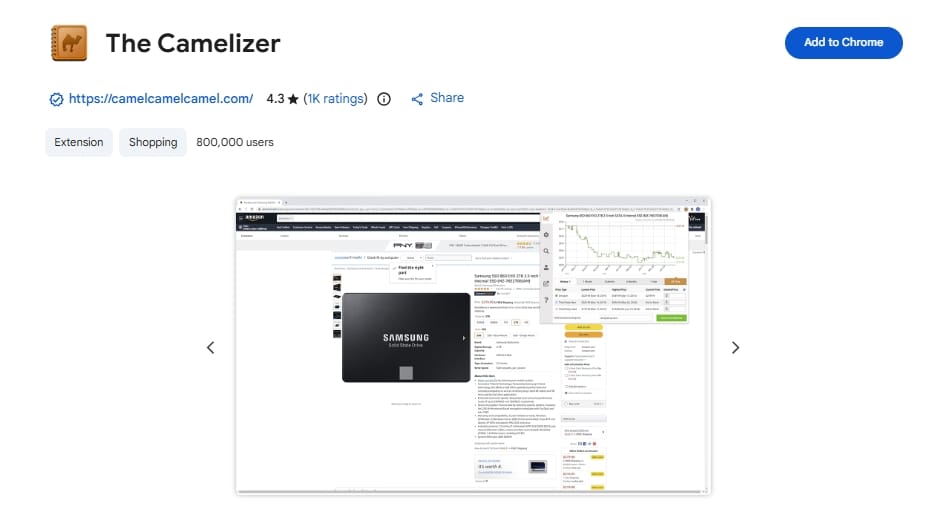
- Best for: Simple Amazon price drop alerts.
- Why it made the list: Lets you view price history and set email drop alerts without crowding the default interface.
- Permission reality check: Limited strictly to Amazon domains. Monetizes via affiliate links.
18. Rakuten
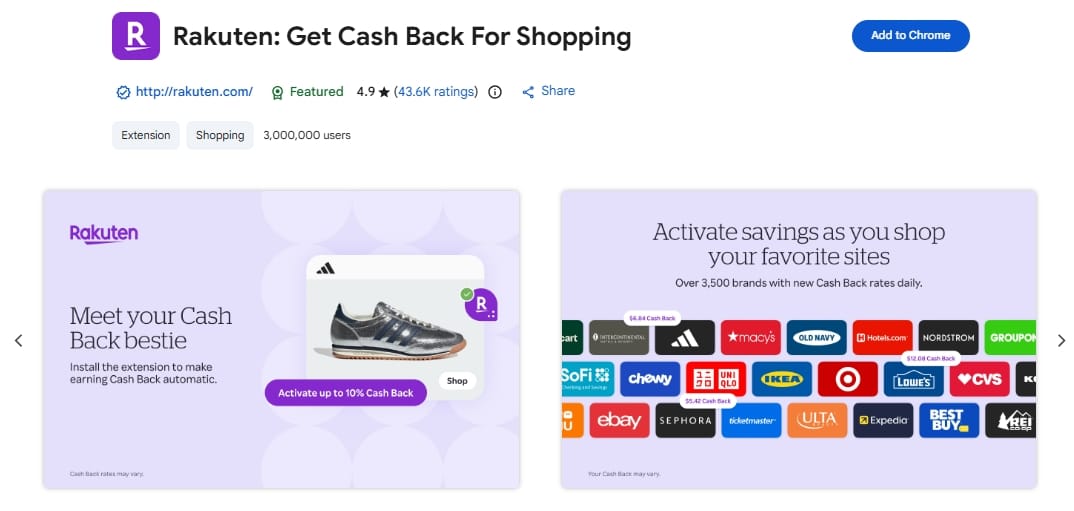
- Best for: Legitimate cashback aggregation.
- Why it made the list: Transparent affiliate revenue-sharing model that actually pays out cash.
- Permission reality check: Requires broad access to detect when you are on a partner retail site. You are explicitly trading shopping behavior data for a cash split.
Best Chrome Extensions for Students, Research, and Web Clipping
The best Chrome extensions for students directly bridge the browser to a note-taking system. Clipping into an unused app is just digital clutter.
19. Zotero Connector
- Best for: Academic source capture and citation management.
- Why it made the list: Senses bibliographic metadata on pages and saves it directly to a local library with one click. Open-source, non-profit, and privacy-respecting.
- Permission reality check: Requires broad access to detect metadata globally.
- Key limitation: Requires the Zotero desktop app to function.
20. Notion Web Clipper
- Best for: Organized note capture directly into databases.
- Why it made the list: Strips web pages down to core text and images, dropping them cleanly into specified Notion workspaces.
- Permission reality check: Requires active tab reading to extract content on click.
21. Evernote Web Clipper
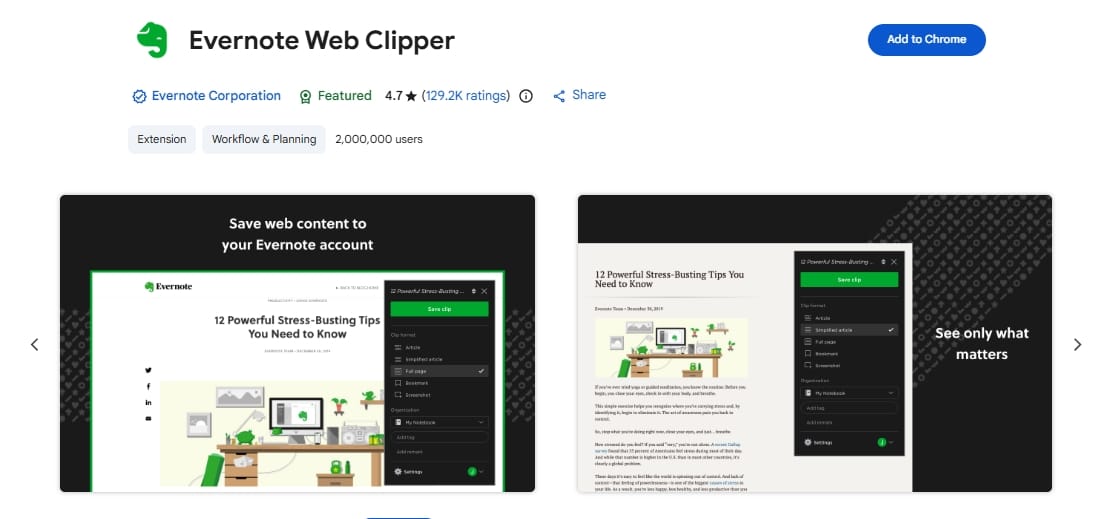
- Best for: Heavy-duty, full-page visual archiving.
- Why it made the list: Unmatched at capturing exact page layouts, PDFs, and annotated screenshots.
- Permission reality check: Broad access required for deep page rendering.
Extensions I Tested and Cut
Popularity does not equal safety. I excluded massive extensions that fail modern security, privacy, or compatibility standards.
- Cut: MV2-era uBlock Origin installs: The legacy MV2 version of uBlock Origin was disabled by Chrome's MV3 transition. While the developer shipped a full MV3 port (v1.70.0) in March 2026, Chrome users should install that updated version directly from the Chrome Web Store rather than relying on a previously installed MV2 instance, which no longer functions.
- Cut: Honey / Coupon Injectors: Excluded due to aggressive checkout tracking and known affiliate hijacking controversies.
- Cut: "Fun" and Game Extensions: While users often search for the best Chrome extensions games or customization tools, these rarely justify the background permissions they demand.
- Cut: Abandoned Utilities: Any simple Pomodoro timer or calculator demanding "read and change all data" access was instantly disqualified.
How to Download Safely
When preparing for a new Chrome extensions download, avoid third-party marketplaces.
- Navigate to the official Chrome Web Store on your desktop. (Mobile Chrome does not support extensions directly).
- Review permissions and privacy practices.
- Click Add to Chrome, but read the resulting dialog box. If a simple tool asks to read your data on all websites, cancel it.
- After install, click the puzzle piece icon, select Manage extensions, click Site access, and restrict it to "On click" if global access isn't strictly necessary.
Why Free Extensions Go Bad Over Time
Free tools require maintenance, server hosting, and support. When an under-monetized tool gains traction, the developer often burns out. Shady buyers purchase these popular extensions, pushing a "sleeper update" that injects adware or harvests data.
Trust requires understanding how a developer sustains their work. Sustainable models—freemium tiers, transparent subscriptions, or open-source funding—ensure the developer doesn't resort to selling your data.
Developer Note: Mellowtel offers an open-source monetization platform for developers trying to avoid ad-injection models.
Instead of silently harvesting data, Mellowtel requires users to follow an Opt In / Opt Out flow before sharing unused internet bandwidth. The requests occur in a sandboxed environment tied to a random identifier, without collecting or selling personal browsing data. If you build free tools, prioritize consent-first models.
Quarterly Audit Guide
Browser health requires active maintenance. Prevent orphaned extensions from slowing you down by running this audit every 90 days:
- Open
chrome://extensions. - Remove anything unused in the last 30 days.
- Tighten site access permissions on remaining tools.
- Check for unsupported or disabled warnings (especially MV2 deprecation flags).
- Update Chrome to the latest stable build.
FAQ
Are Chrome extensions safe?
Some are safe; many are not. Approve only tools you trust. Use the Chrome Web Store, verify the developer's privacy practices, evaluate the permission prompt, and keep your installed stack small.
Do Chrome extensions slow down Chrome?
Yes. Every active extension requires memory. Shopping tools, AI sidebars, and always-on utilities add measurable processing overhead. Conversely, modern content blockers often improve speed by preventing heavy ads and trackers from loading.
How many extensions should I install?
Fewer than most lists imply. Maintain a stack small enough that you can name every active tool, explain its purpose, and comfortably review its permissions.
Should I use Google Password Manager or a password extension?
Use Google Password Manager if you exclusively use Chrome and want built-in passkey support and breach checks. Install a dedicated password extension (like Bitwarden) only if you require secure cross-browser and cross-device syncing.
Are AI Chrome extensions safe for work?
Treat them with extreme caution. Research shows 52% of AI-powered Chrome extensions collect user data. For sensitive corporate work, using the provider's direct web app is significantly safer than granting a third-party extension permanent tab-reading access.
Can I install extensions from my phone?
You cannot use extensions directly within the mobile Chrome browser. While you can trigger an install to your desktop browser from a signed-in phone, true mobile extension support remains unavailable on Chrome for iOS and Android.